I was recently “gifted” a nice MacBook Pro and decided I want to use it to run AI models locally. I’ve become accustomed to working with AI Harnesses (Claude Code, OpenCode, etc.) but hate the cost. Here is a free and private solution that works locally.
Goals:
- Get an open-source AI coding model running locally.
- Connect a code harness, like OpenCode, to my local model.
- Use both on an existing repo to scan it and create an
AGENTS.mdfile.
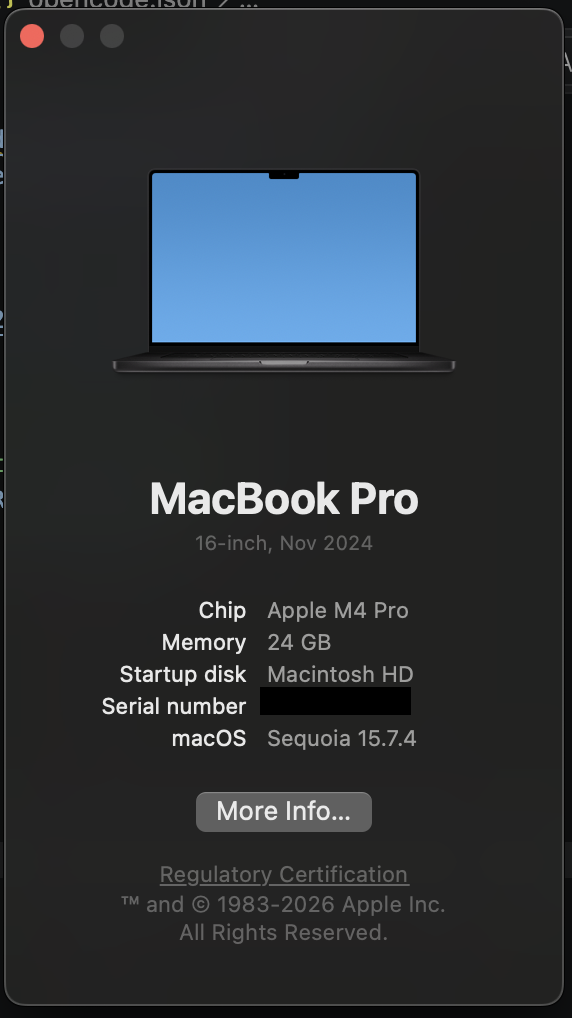
Specs: MacBook Pro, M4, 24GB Memory, macOS Sequoia 15.7.4.
Step 1: Setting up the Local Brain (Ollama)
The first step is getting the “engine” running. I used Ollama, which is the gold standard for running Large Language Models (LLMs) on macOS.
The “ISP” Hurdle
When I first tried to pull my model, I ran into a weird SSL interception issue with my ISP (Digi). It seems they were flagging the Cloudflare-backed downloads. The Fix: I fired up my VPN (Private Internet Access) to a USA-based node, and the download started immediately.
Pulling the Model
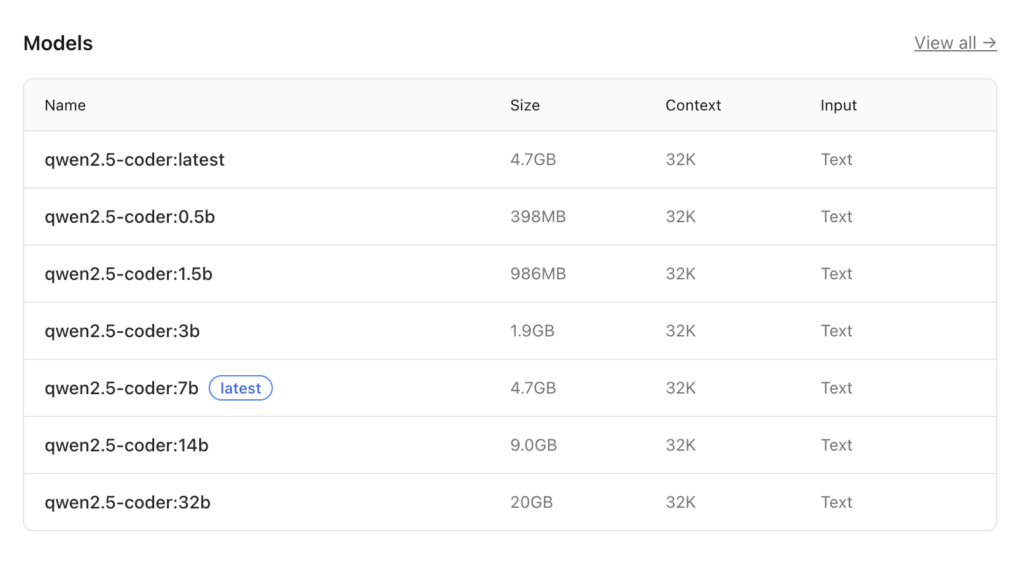
For coding on the M4, you want Qwen 2.5 Coder 14B. It’s a 9GB file, but it hits the “sweet spot” between speed and intelligence. Here are all Qwen 2.5 Coder models.
ollama pull qwen2.5-coder:14b

Optimizing Memory
To make sure the model has enough “room to think” about a whole codebase, I bumped up the context window to 32k:
ollama run qwen2.5-coder:14b "/set parameter num_ctx 32768"
The Performance Benchmarks
Running locally on the M4 is shockingly fast. I tested it by asking it to write a Python script to detect ISP proxy interception. It peaked at 92.40 tokens/s for the initial evaluation. That is faster than most paid cloud APIs!
Step 2: Connecting the Harness (OpenCode)
An AI model is just a chat box until you give it tools. OpenCode is a CLI that allows the AI to actually read your files and run terminal commands.
The Installation
curl -fsSL https://opencode.ai/install | bash
The “Bridge” Hack
By default, these apps often push you toward their paid cloud services. To force OpenCode to talk to your local M4, you have to create a custom configuration. We use the openai provider type as a “bridge” because it’s the most stable way to handle tool-chaining with Ollama.
Create or edit your config at ~/.config/opencode/opencode.json:
{
  "$schema": "https://opencode.ai/config.json",
  "model": "qwen2.5-coder:14b",
  "provider": {
    "openai": {
      "name": "Ollama-Bridge",
      "options": {
        "baseURL": "http://127.0.0.1:11434/v1",
        "apiKey": "ollama"
      },
      "models": {
        "qwen2.5-coder:14b": {
          "name": "qwen2.5-coder:14b"
        }
      }
    }
  },
  "permission": {
    "edit": "allow",
    "bash": "allow",
    "read": "allow"
  }
}
Connecting the Model
- Navigate to your code directory and type
opencode. - Type
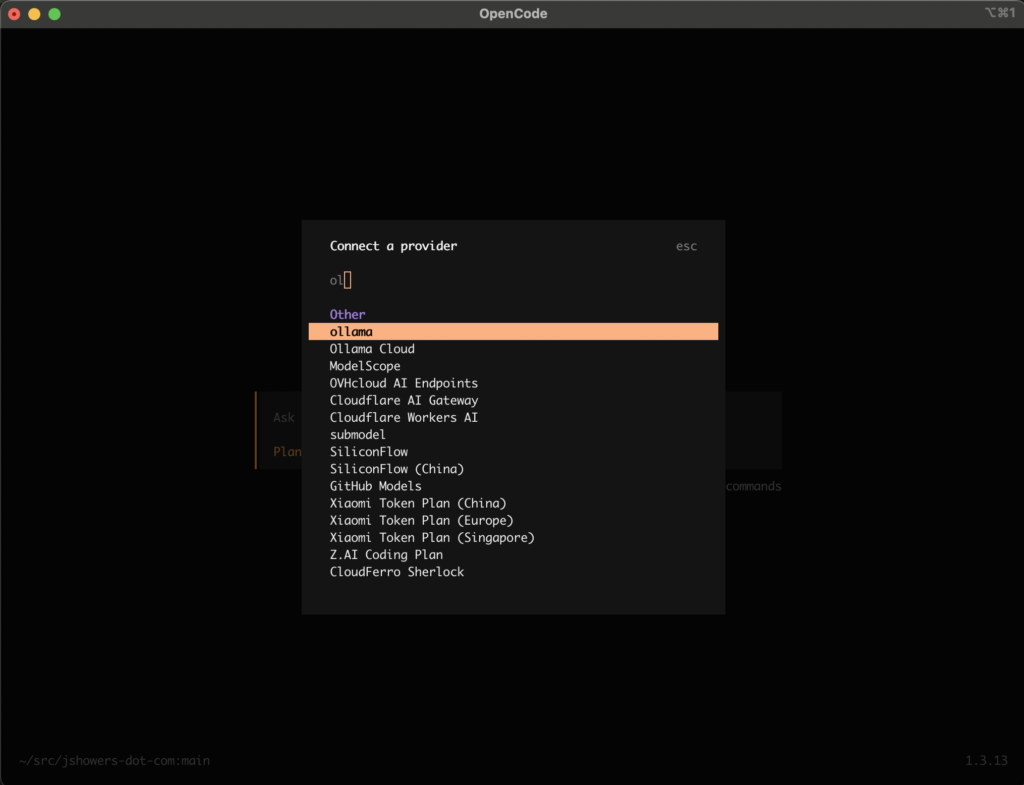
/connect. - Select the Ollama option that now appears thanks to your config.
- Enter a “bogus” API key (I just used
ollama) and select your local model.
Step 3: Generating the AGENTS.md
I believe that while a README.md is like a travel brochure for humans, an AGENTS.md is the plane’s flight manual for the AI. It tells the agent exactly what the architecture is so it doesn’t hallucinate.
I ran this prompt against my WordPress theme repo:
Generate an
AGENTS.mdfile for this repo. It is a wordpress repo (without the WP files). The jshowers theme is the most important. There is a tidbits folder you can do discovery on. These are linked to from within blog posts. The main feature of this repo is the wordpress theme.
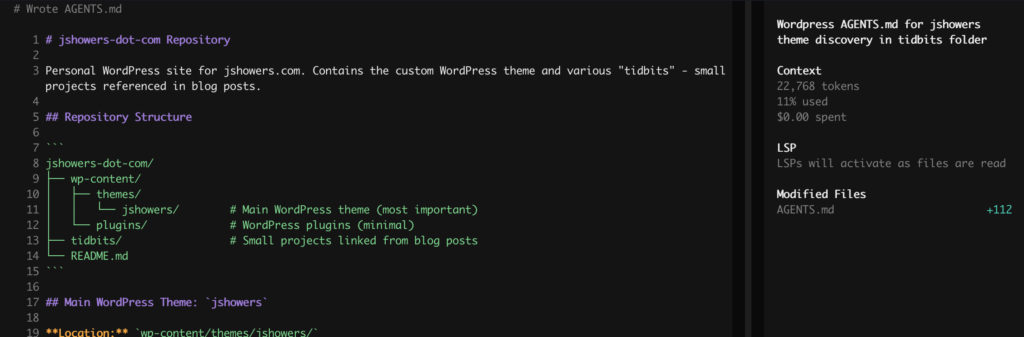
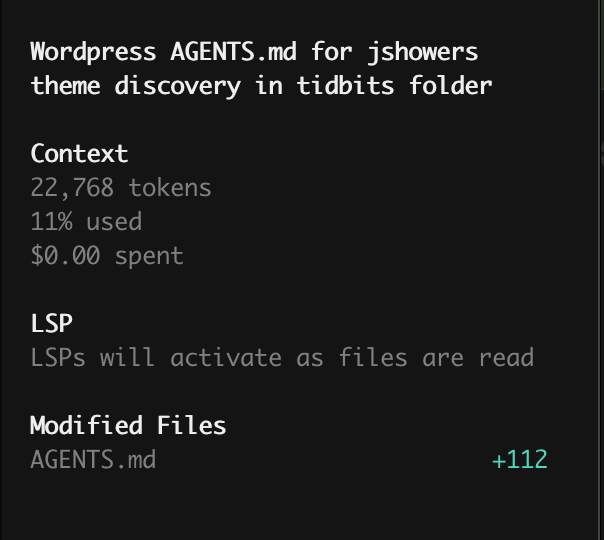
The Result: TADA! Within seconds, the local model scanned my directories, identified the theme logic, and wrote a perfect technical spec. No data left my machine, no tokens were billed to my credit card, and my M4 barely broke a sweat.
Final Thoughts
If you have an M-series Mac, you are sitting on a supercomputer. Stop paying for monthly AI subscriptions and start running your own “Private Dev Agency” right from your terminal.
Total Cost: $0.00. Privacy: 100%. Vibe: Yas.
🚨 APRIL 2026 UPDATE: The “Qwen 3” Pivot
OpenCode 1.3.15 just dropped, and it completely changed the game for local tool execution. If you followed my previous guide and noticed your AI “talking” in JSON instead of actually running commands, it’s because the new OpenCode engine requires Qwen 3‘s improved reasoning and a revised opencode.json schema.
1. Upgrade the Engine
Qwen 2.5 is great, but Qwen 3:14b is the new “Sweet Spot” for M4 Macs. It handles the new OpenCode tool-chaining natively. Run these commands to pull it and lock in your 32k context window:
Bash
ollama pull qwen3:14b
ollama run qwen3:14b
>>> /set parameter num_ctx 32768
>>> /save qwen3:14b
>>> /bye
2. The New “Vibe” Config
OpenCode 1.3.15 is pickier about its “Handshake.” Use this updated opencode.json to enable the new @ai-sdk/openai-compatible bridge. This fixes the bug where the AI outputs raw JSON instead of executing tools:
JSON
{
 "$schema": "https://opencode.ai/config.json",
 "model": "ollama/qwen3:14b",
 "provider": {
   "ollama": {
     "npm": "@ai-sdk/openai-compatible",
     "name": "Ollama (local)",
     "options": {
       "baseURL": "http://127.0.0.1:11434/v1"
     },
     "models": {
       "qwen3:14b": {
         "name": "qwen3:14b",
         "tools": true
       }
     }
   }
 },
 "permission": {
   "edit": "allow",
   "bash": "allow",
   "read": "allow"
 }
}
Pro-Tip: After saving this, run rm -rf ~/.cache/opencode in your terminal to clear out the old 1.3.13 logic. Once you restart, the green execution bars will be back, and your local agent will be faster than ever.